Team & Roles
Inviting users
Add your team to FoxTrak so they can collaborate on jobs, get assigned to steps, and receive notifications when it's their turn to act.
How to invite a team member
- Go to Settings → Member Settings
- Click Invite Member
- Enter their email address
- Select their role — Admin, Editor, or Viewer
- Click Send Invite
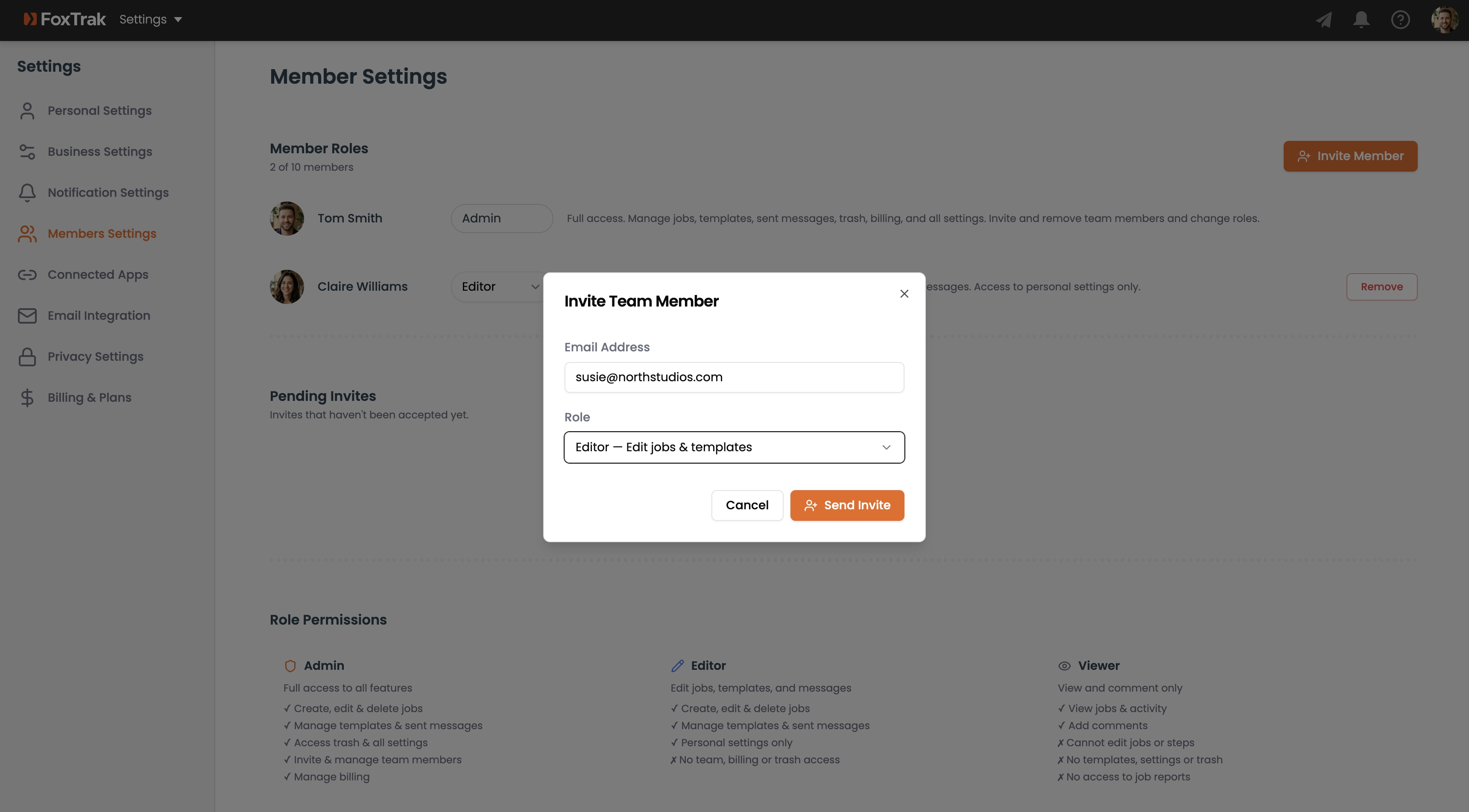
They'll receive an email with the subject "You're invited to [your business name]" containing a join link. The link is valid for 7 days.
Managing pending invites
Go to Settings → Member Settings to see all pending invites. Each invite shows the recipient's email, role, and the date it was sent. You can Resend or Cancel any pending invite.
Plan member limits
- Free — 1 member
- Essentials — 3 members
- Professional — 10 members
- Business — unlimited
If you've reached your plan limit, FoxTrak will prompt you to upgrade before sending the invite.
Once a team member accepts the invite, they're added to your business automatically and can start working on jobs immediately.