Customer Updates
Attaching files to a step message
When you send a customer update, you can attach files directly to the step message — so the customer receives them along with the notification and can view them on their live tracker.
How to attach a file to a step message
- Open a job and click Edit Message on a step to open the message editor
- Select or drag and drop your file
- Click Update to save the message
- Send the update as normal
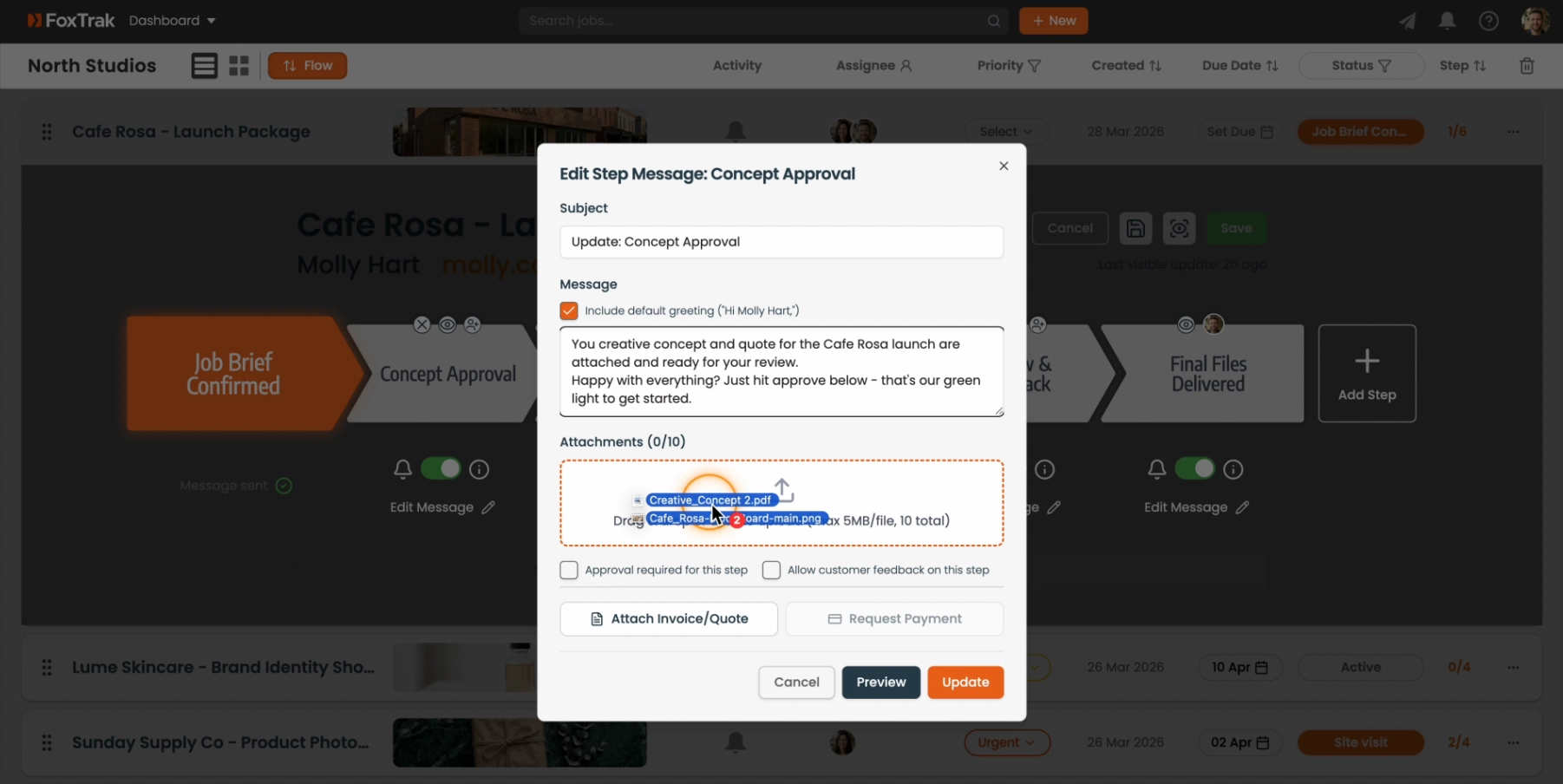
The customer receives the file with their email or SMS notification, and can also view and download it directly from their live tracker.
What the customer sees
Attached images are displayed inline in the message on the tracker. Other file types — PDFs, documents — appear as a download link.
The difference between job attachments and step attachments
- Job attachments — added via the Show Details panel. Internal only, never shared with the customer.
- Step message attachments — added to a step message. Sent to the customer and visible on their tracker.
Step attachments are perfect for sharing inspection photos, completed work images, quote PDFs, or final deliverables — anything the customer needs to see at that stage of the job.