Your first job
This walkthrough covers everything from creating a job to sending your customer a live tracker link. By the end you'll have a job running and your customer updated - in just a few minutes.
When you log in for the first time, FoxTrak's guided tour will walk you through each step automatically. You can skip it at any time, but it's worth following at least once.
1. Create the job
Click + New in the top right of your dashboard. Enter the job title, customer name, and their email or phone number. Then click Create.
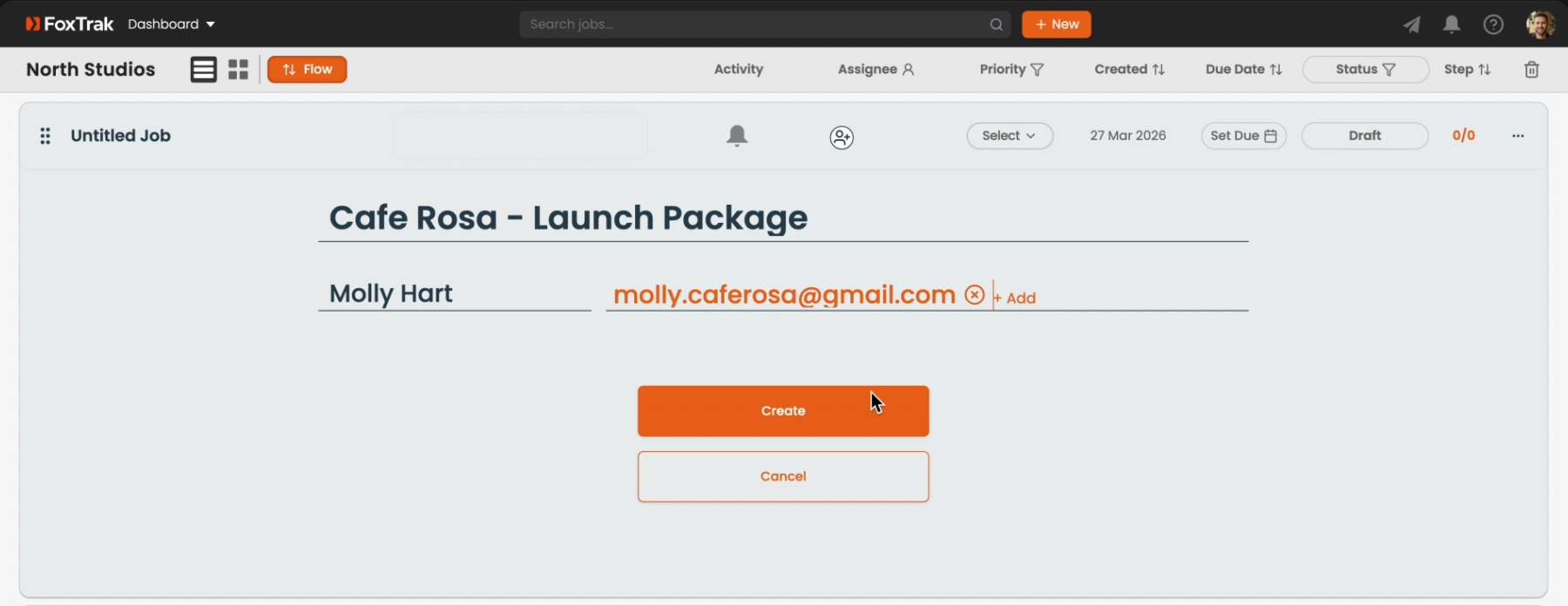
2. Choose a template or start fresh
Click Select Template or New once you've filled in the customer details. Templates pre-load a workflow of steps so you don't have to build from scratch every time. Click a template to apply it instantly, or select new to start with a blank slate.
You can save your own templates any time - great for jobs you run repeatedly. See Saving your own templates.
3. Set up your workflow
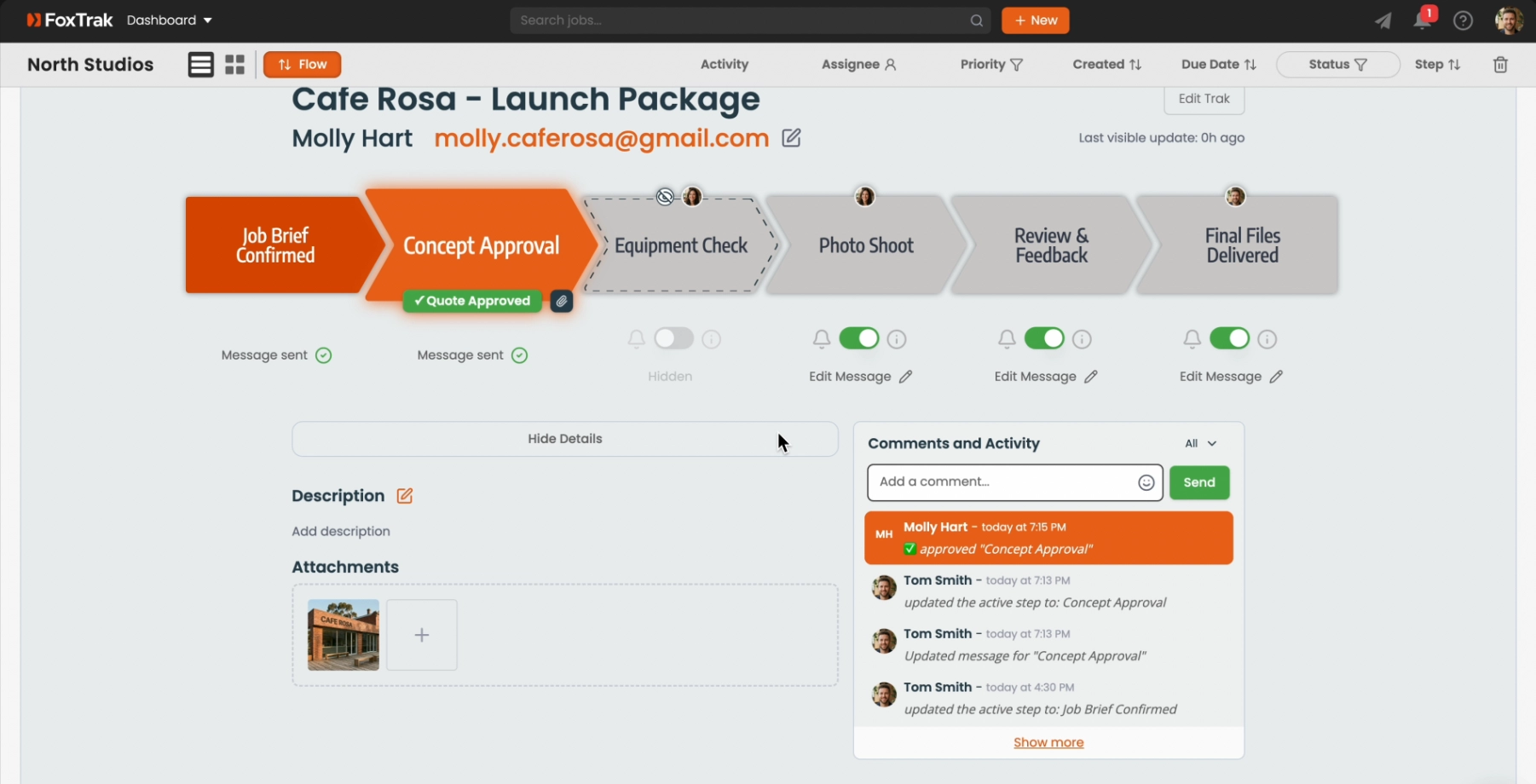
Click Edit Trak to customise the job steps. You can rename steps, add new ones, drag and drop to reorder them, and delete any you don't need. Each step represents a stage of the job your customer can see progressing in real time.
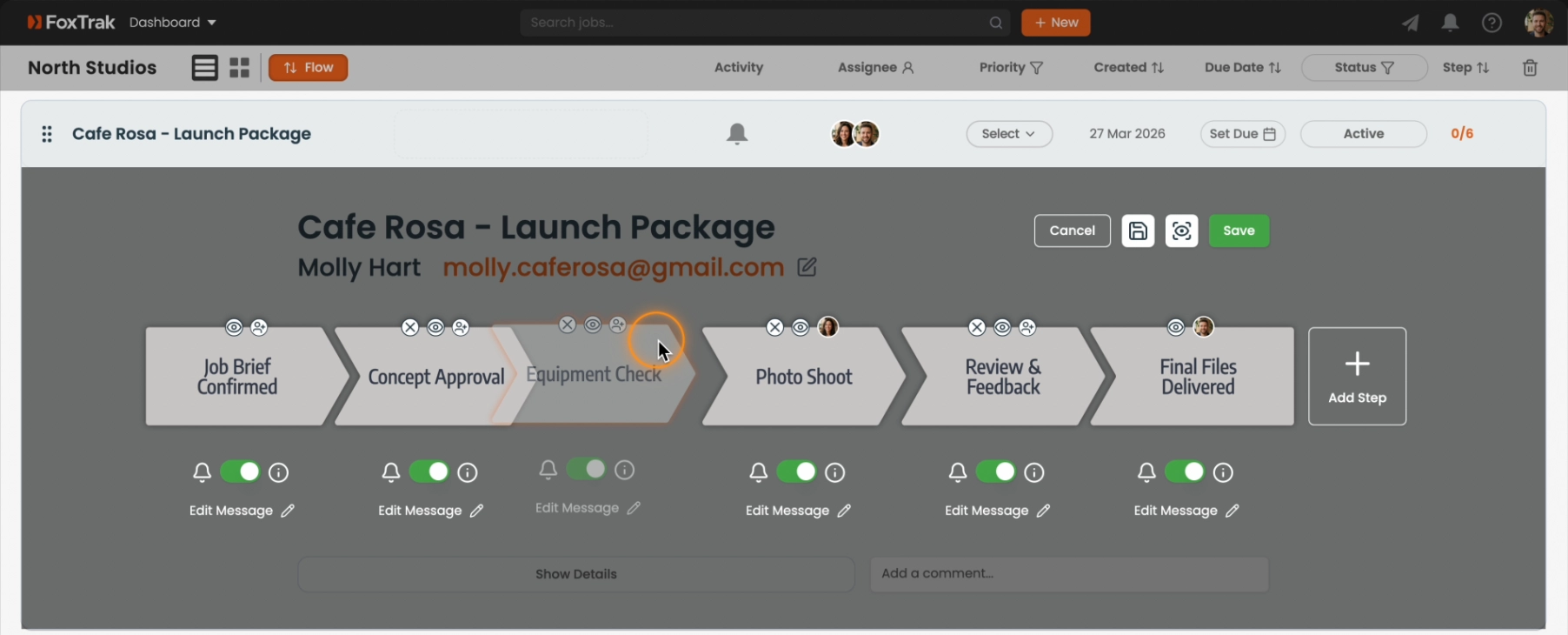
4. Customise your first update message
Click Edit Message on the first step to customise the SMS or email your customer receives when you update that step. You can preview exactly what they'll see before sending anything.
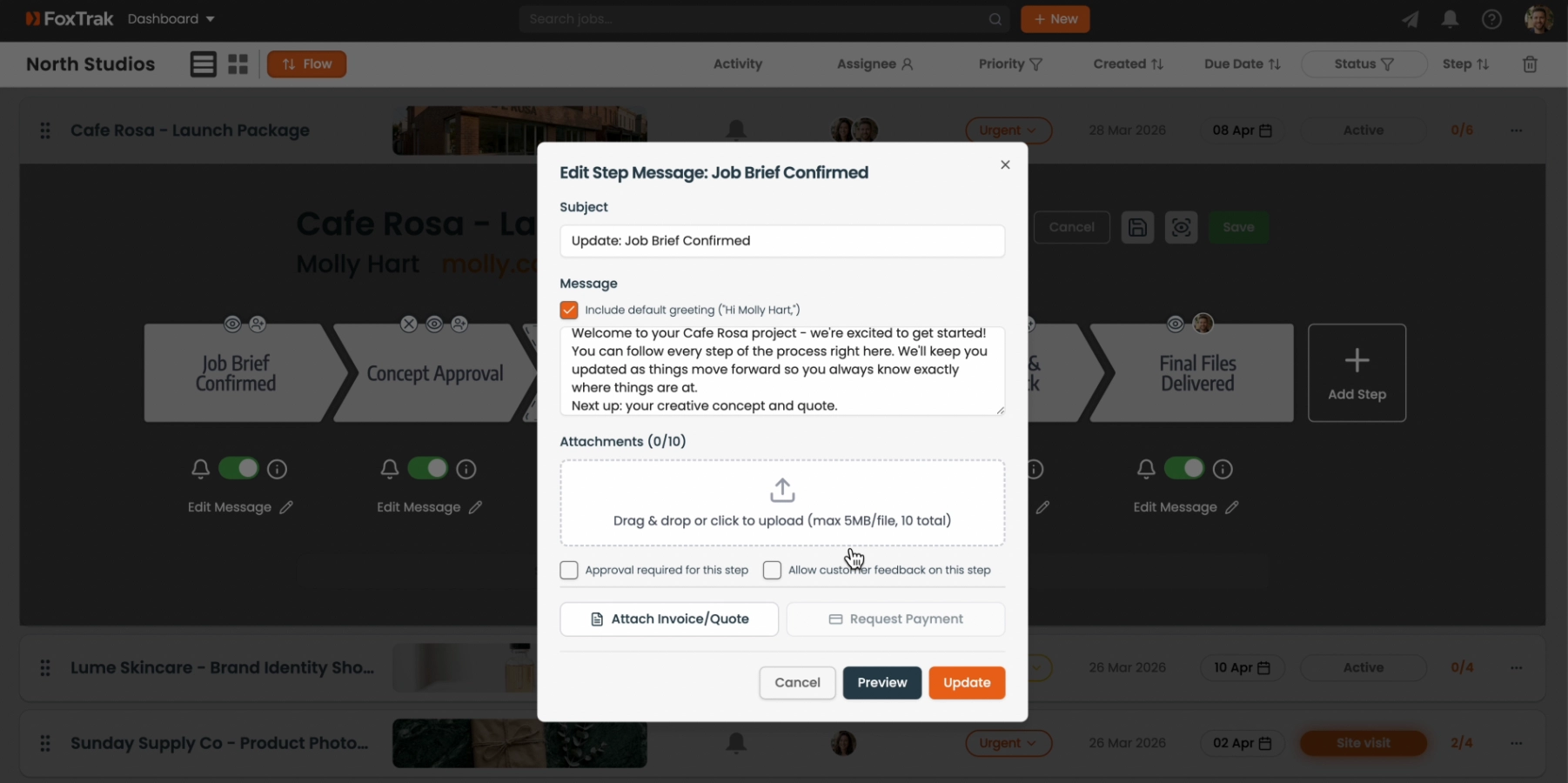
5. Update your customer
When you're ready, click the step to send the update. Your customer receives an email, or an SMS if they have an Australian or UK mobile number, with a link to their live tracker. There's a 10-second window to cancel if you need to - after that the message is on its way.
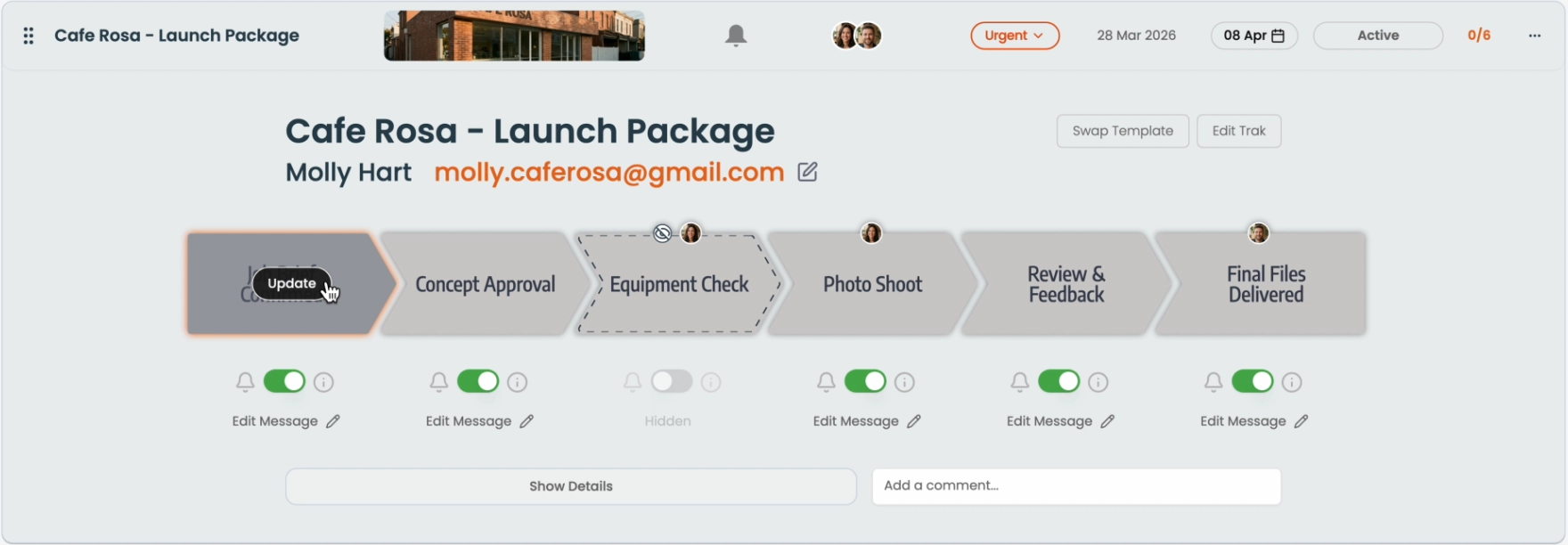
The tracker updates in real time - your customer sees each step complete as you mark it, without you needing to send another message.
6. Add details to the job
While the job is running you can add files or images, set a priority level, and set a due date that's visible to your customer on their tracker. All of this can be done at any point during the job.
What's next?
Now that you've got a job running, explore what else FoxTrak can do: