Jobs & Workflow
Adding and reordering steps
Steps are the stages of your job - what needs to happen, in what order. They appear on the live customer tracker.
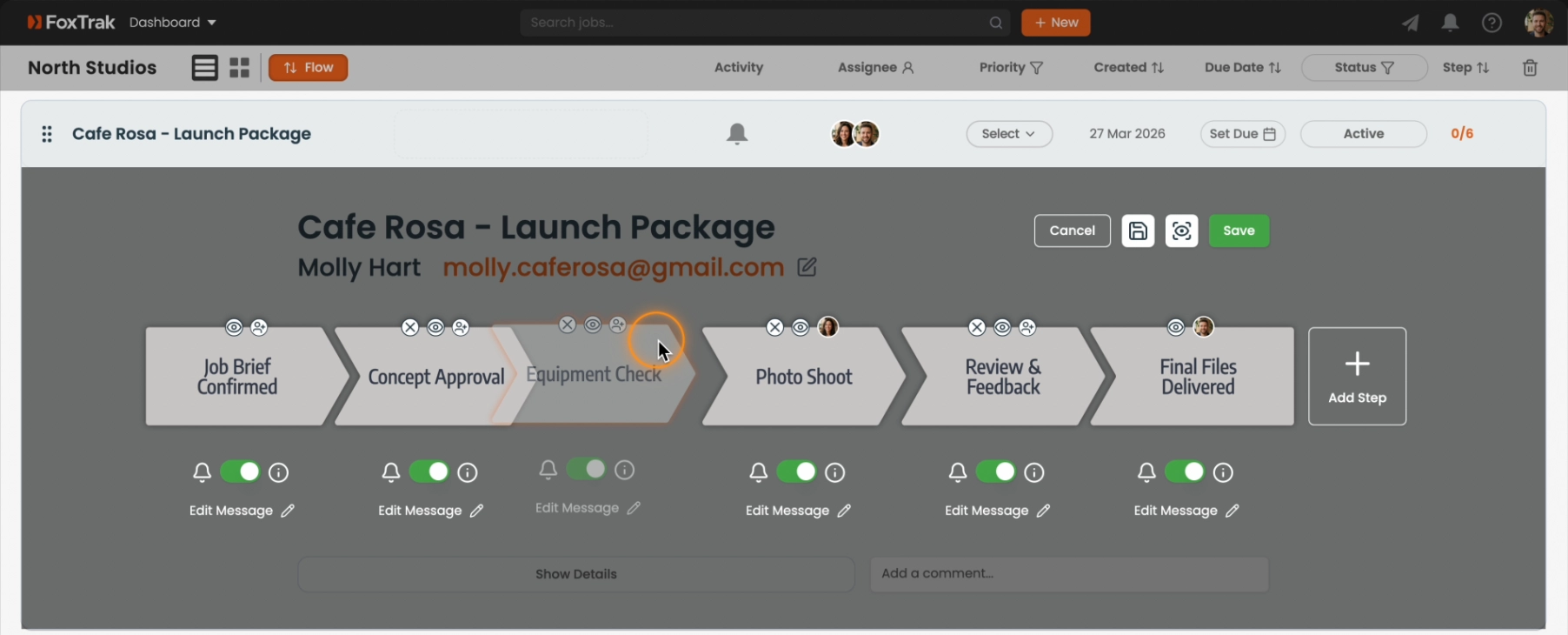
Adding a step
- Click Edit Trak on the job to enter edit mode
- Click + Add Step to the right of the last step
- The new step is created with the default title New Step - click it to rename
- Optionally assign members or hide the step
- Click Save
Reordering steps
Drag the step to move it to a new position. Reordering works on both desktop and mobile — touch drag is supported.
Save time by starting from a template — templates pre-load a full set of steps so you don't build from scratch every time. See Using templates.