Quotes, Invoices & Payments
Creating an invoice
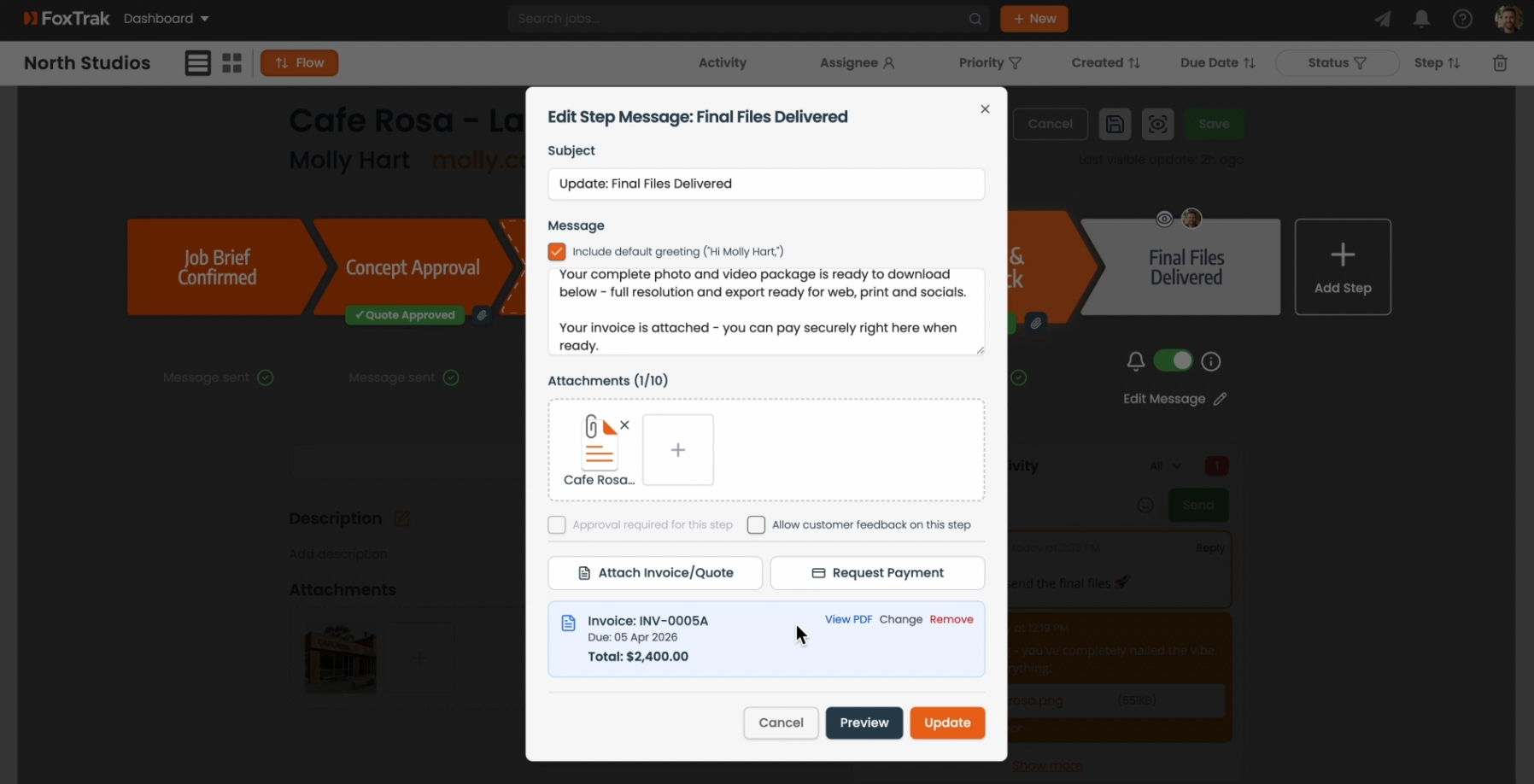
Attach an invoice to a step to send your customer a payment request directly through their live tracker.
How to attach an invoice
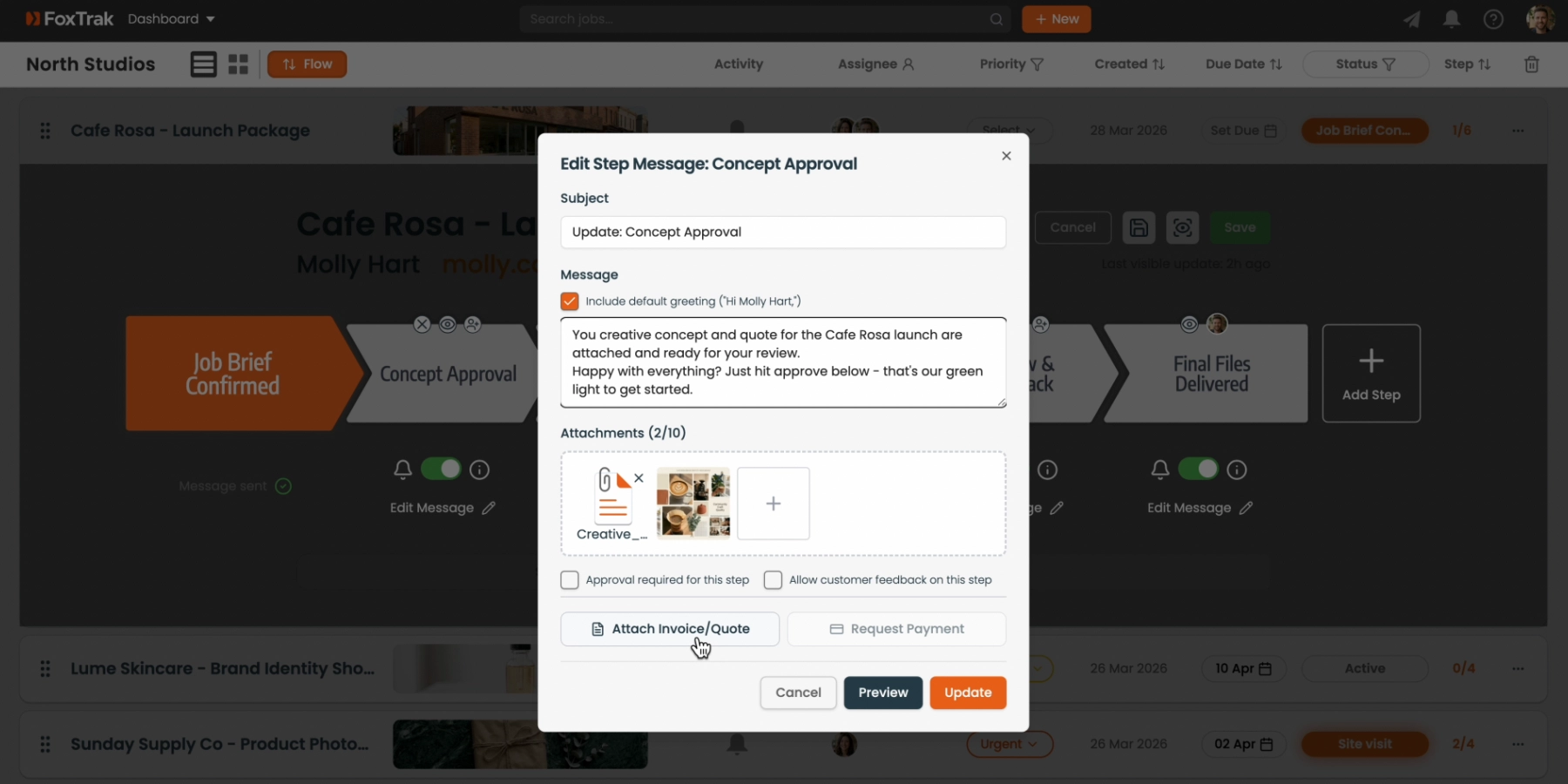
- Open a step's message editor
- Click Attach Invoice/Quote
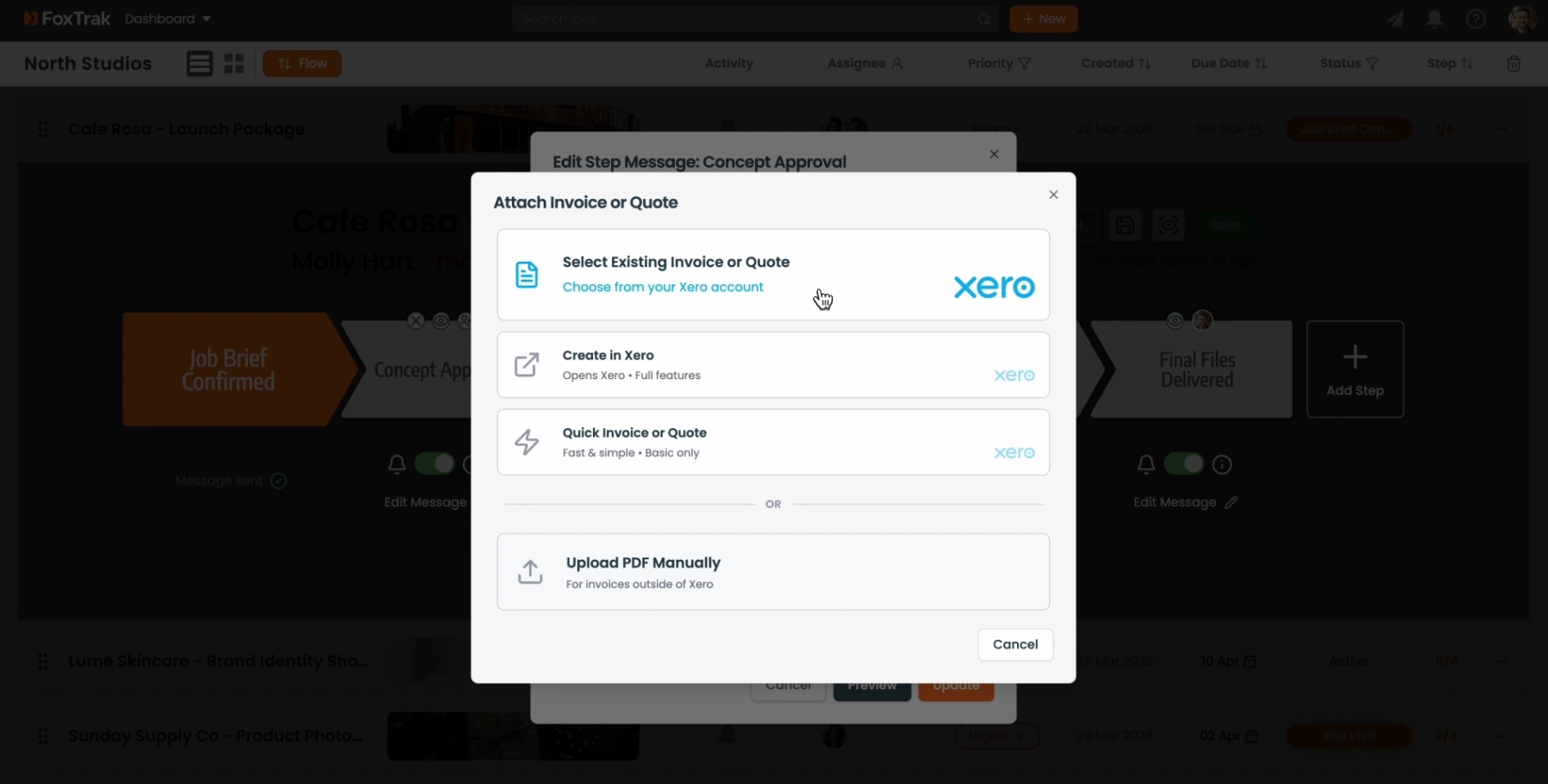
- Choose your option:
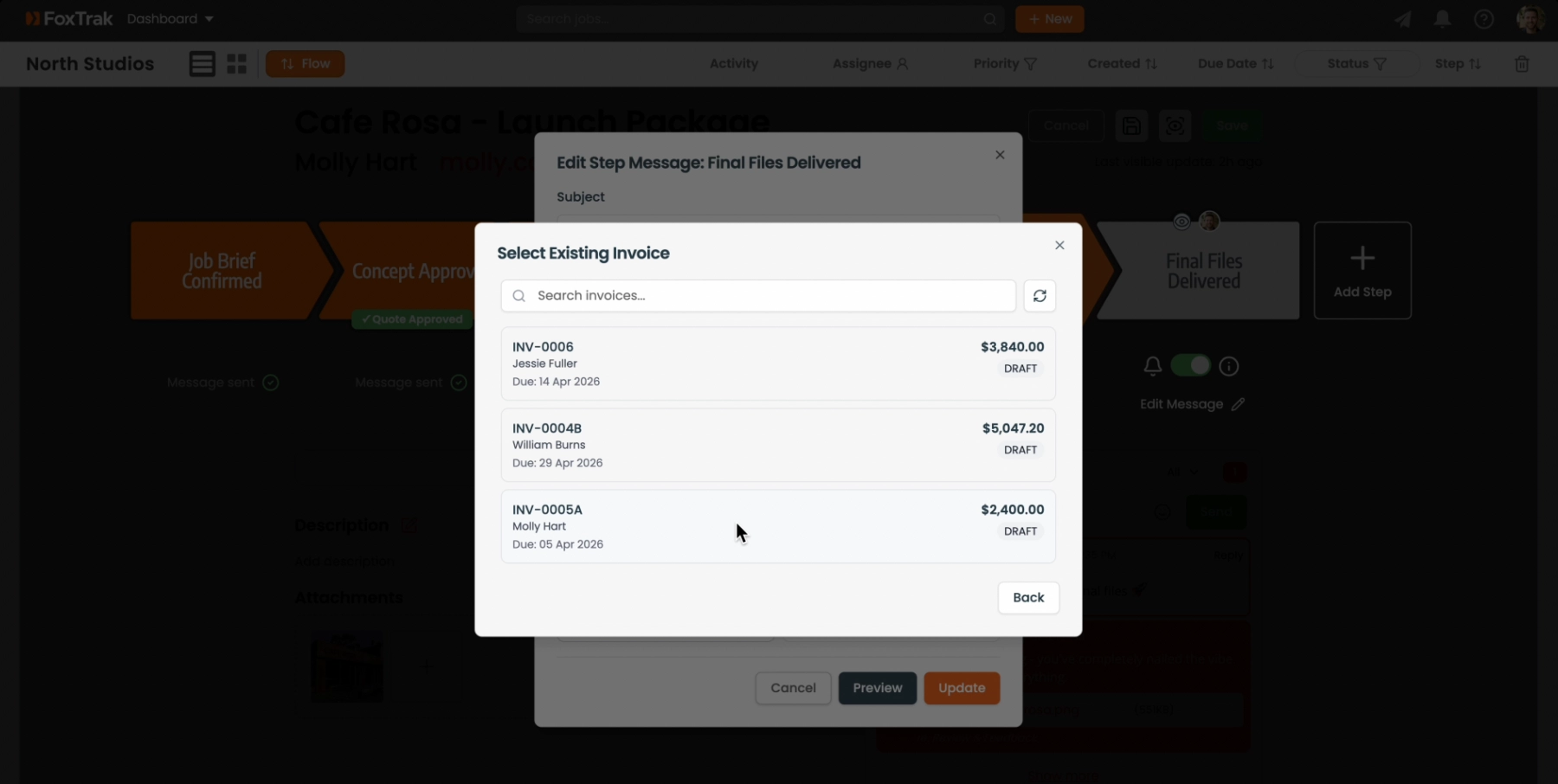
- Select from Xero — choose from your existing unsent Xero invoices
- Create in Xero — opens Xero to build an invoice there, best for complex invoices
- Quick Invoice (Basic) — create a simple invoice directly in FoxTrak with line items and a due date. Syncs to Xero automatically and updates to Paid in Xero when your customer pays
- Click Update to save the step message
Not connected to Xero?
You can attach a manual PDF invoice instead. See Attaching a manual PDF quote or invoice.
Requesting payment
Once an invoice is attached, check Request Payment on the step to show payment options to the customer on their tracker. See Requesting payment for full details.
Essentials plan or above required. If connected to Xero, invoices sync automatically when marked as paid.