Quotes, Invoices & Payments
Requesting payment
Once you've attached an invoice to a step, you can request payment from your customer - they'll see the payment options directly on their tracker.
Enabling a payment request
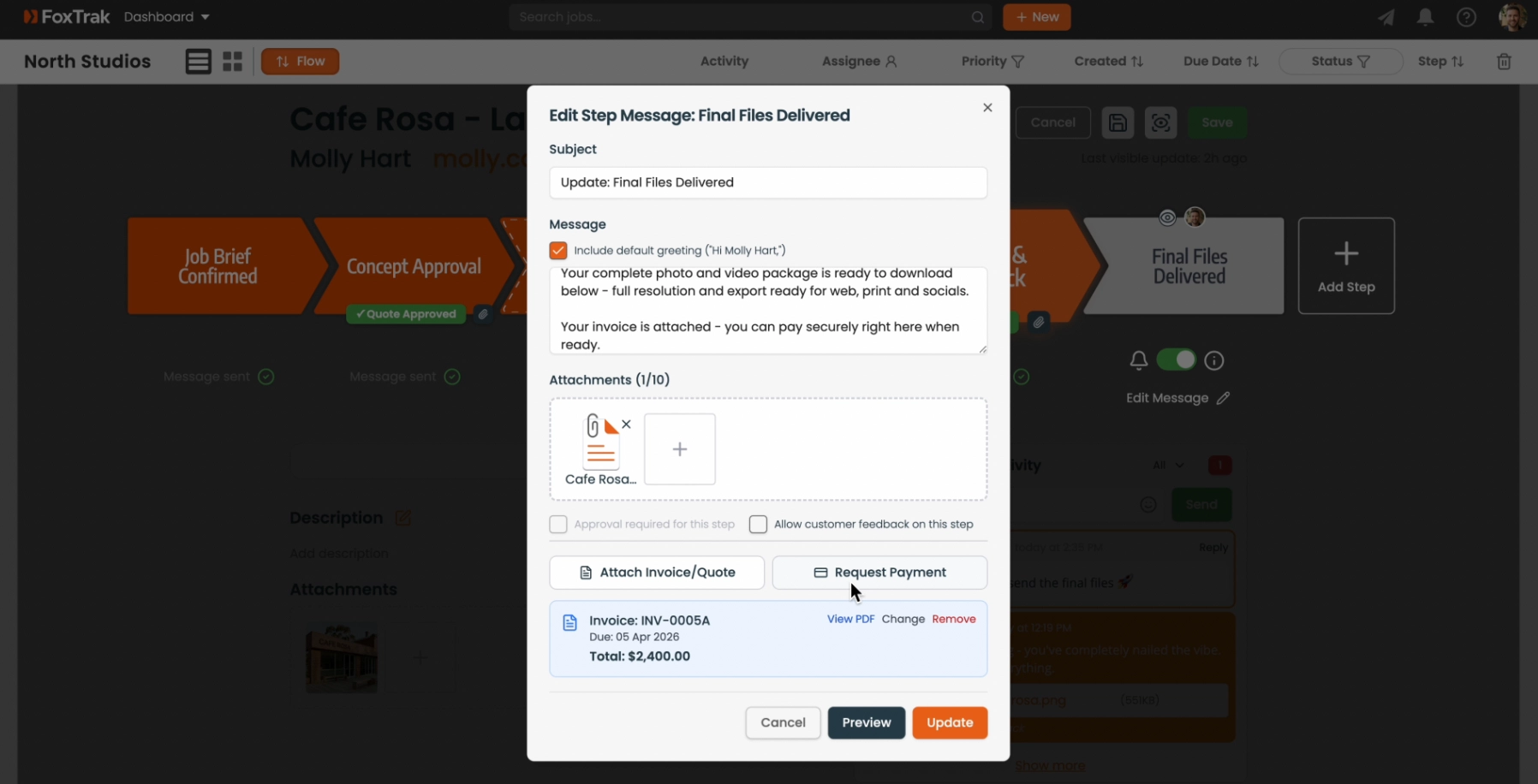
- Open a step's message editor
- Attach an invoice
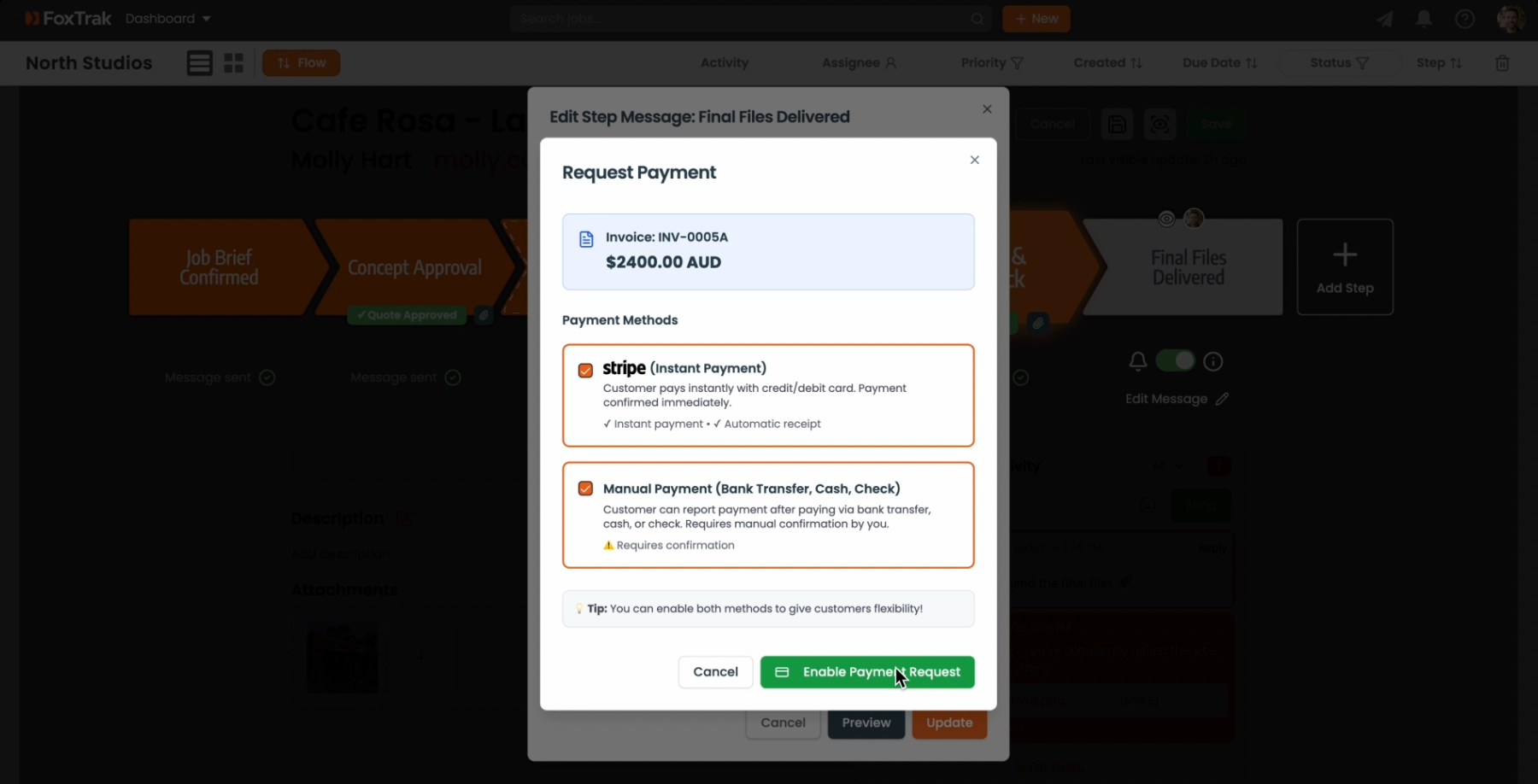
- Click Request Payment
- Enable Stripe, Square, or manual payment, in any combination
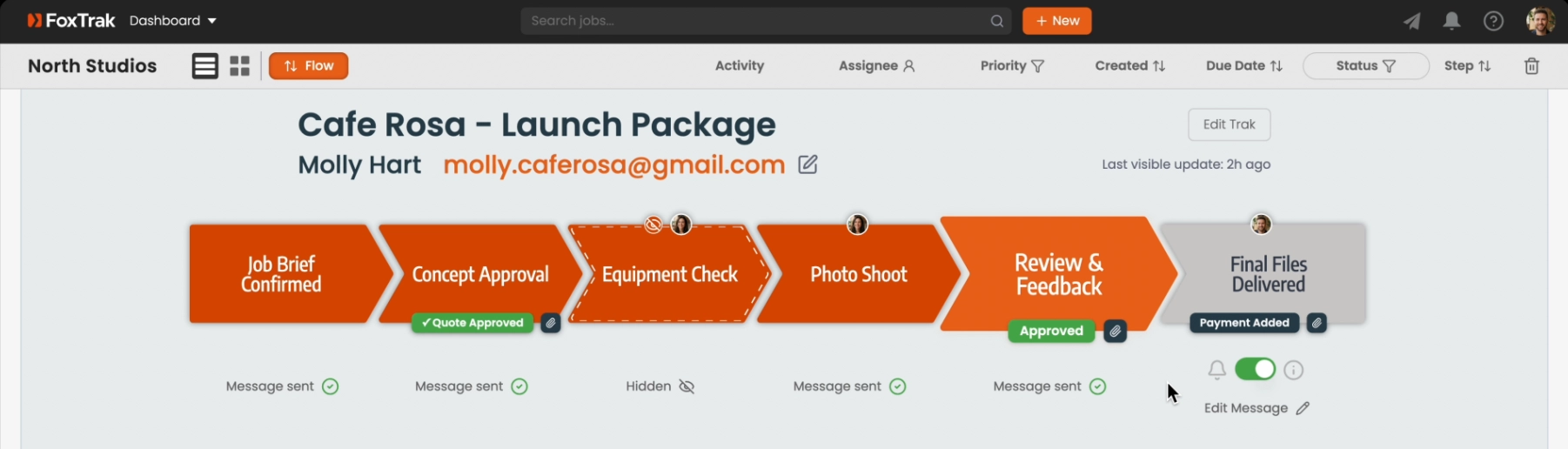
A Payment Added badge appears on the step in your job view. The customer sees the invoice amount and their available payment options on the tracker when you update the step.
What the customer sees
Depending on how you've configured payment methods, the customer sees some combination of a Pay Now with Card button (Stripe or Square), or a I've already paid this button (manual payment) with instructions for bank transfer, cash, or cheque. They can also upload a receipt for manual payments.
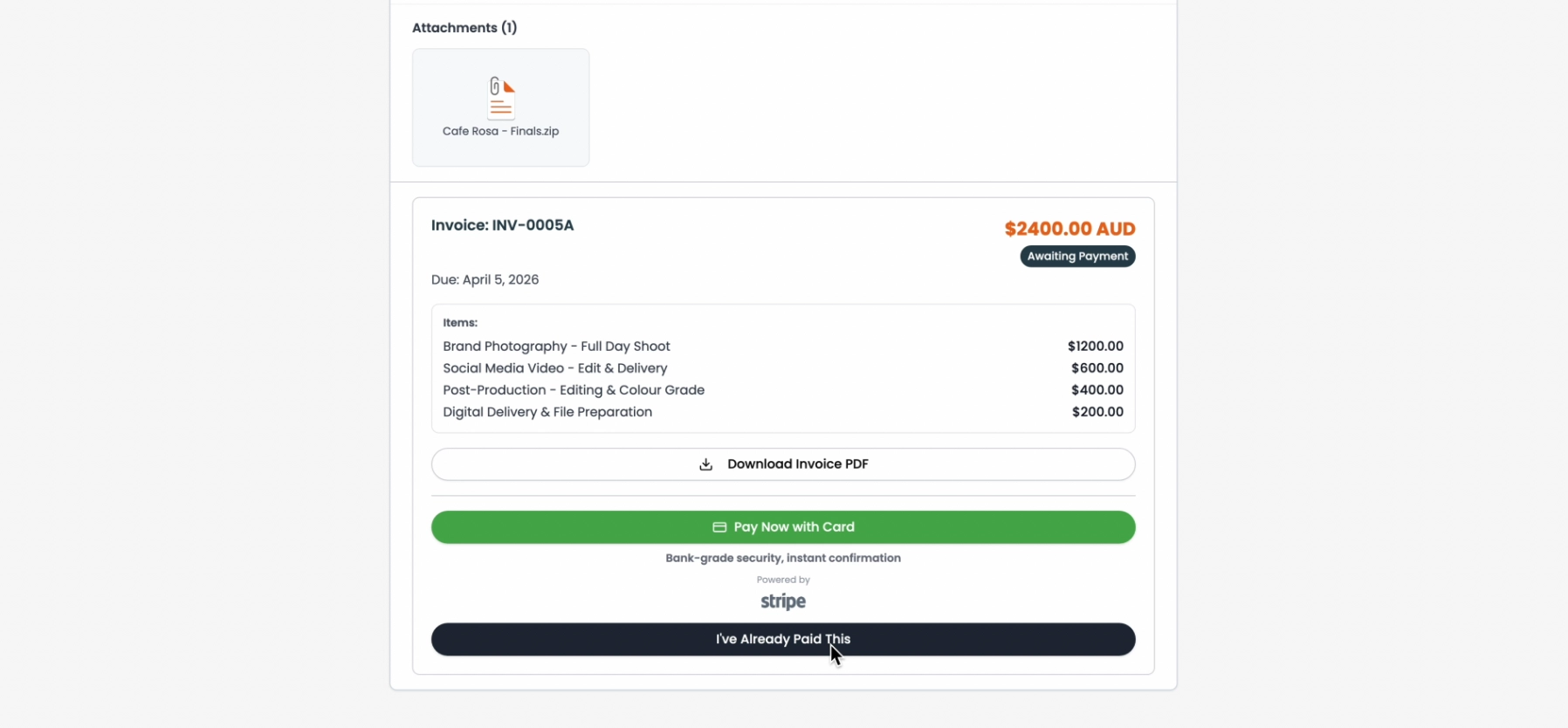
You can enable Stripe, Square, and manual payment options at the same time - giving customers flexibility in how they pay.