Jobs & Workflow
Assigning a step to a team member
Assigning steps to team members makes it clear who is responsible for each stage of a job. Assigned members get a "You're Up" notification when it's their turn to act.
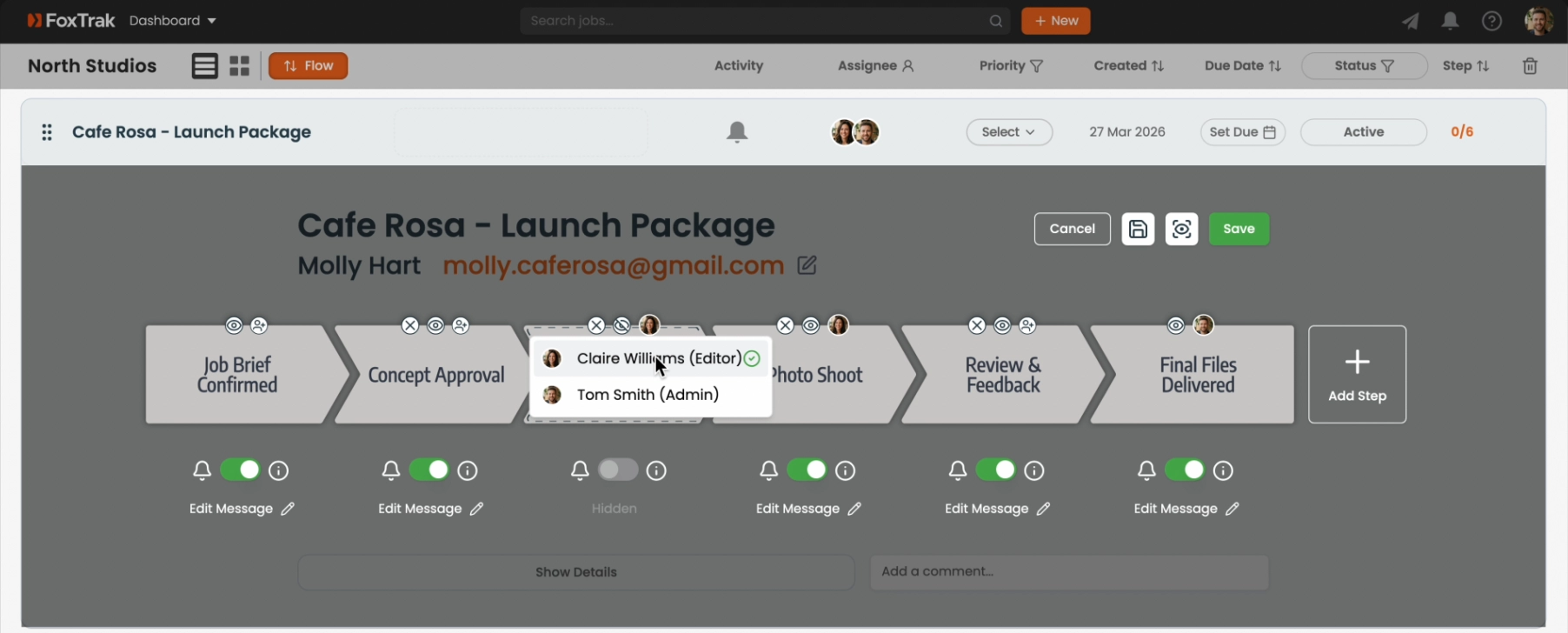
Assigning at the step level
- Click Edit Trak to enter edit mode on the job
- Click the assignee icon on the step you want to assign
- Select one or more team members from the list — each has a checkbox
- Click Save to exit edit mode and save the assignments
Assigning at the job level
You can also set a job-level assignee using the assignee button in the job header. This applies to the whole job, but step-level assignments override it for individual steps.
Multiple assignees
Multiple team members can be assigned to the same step. All of them will receive a notification when the step becomes active.
Step assignments are visible to the whole team in the job view, so everyone can see who's handling what at a glance.