Adding files and images
You can attach files and images to a job at any time — useful for reference photos, documents, plans, or anything else your team needs. These attachments are internal and are never sent to the customer.
Uploading attachments
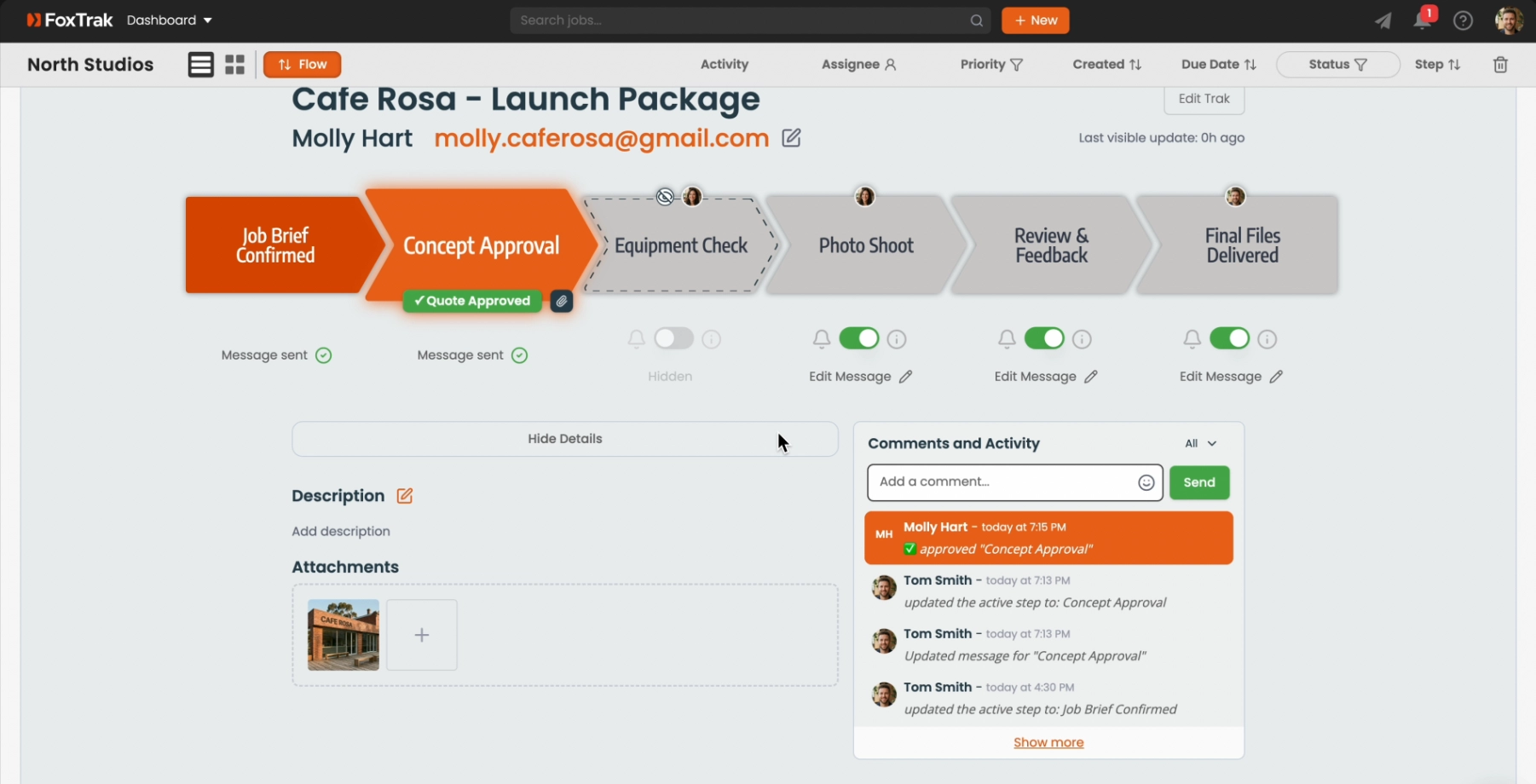
- Open the job and click the Show Details button to display the Attachments section
- Drag and drop files onto the upload area, or click it to browse
Each job supports up to 10 attachments, with a maximum of 5MB per file.
File types
Images (JPG, PNG, GIF, WebP, BMP, SVG) are automatically compressed on upload and displayed as thumbnails. Other file types — PDFs, documents, spreadsheets — are stored as-is and shown with a file type icon.
Cover image
You can set any uploaded image as the cover image for the job.
Removing attachments
Click the X icon on any attachment to remove it. A confirmation dialog appears — Delete image? or Delete file? depending on the file type.
Want to send files to your customer? Attach them directly to a step message instead — that's how you share quotes, inspection photos, or final deliverables with the customer.