Customer Updates
Previewing email or SMS
Before sending an update, you can preview exactly what the customer will see - the full formatted email or SMS, including greeting, body, footer, and any attachments.
How to preview
- Open a step's message editor
- Click the Preview button
The preview updates in real time as you edit the subject or body. No message is sent during preview - it's view-only.
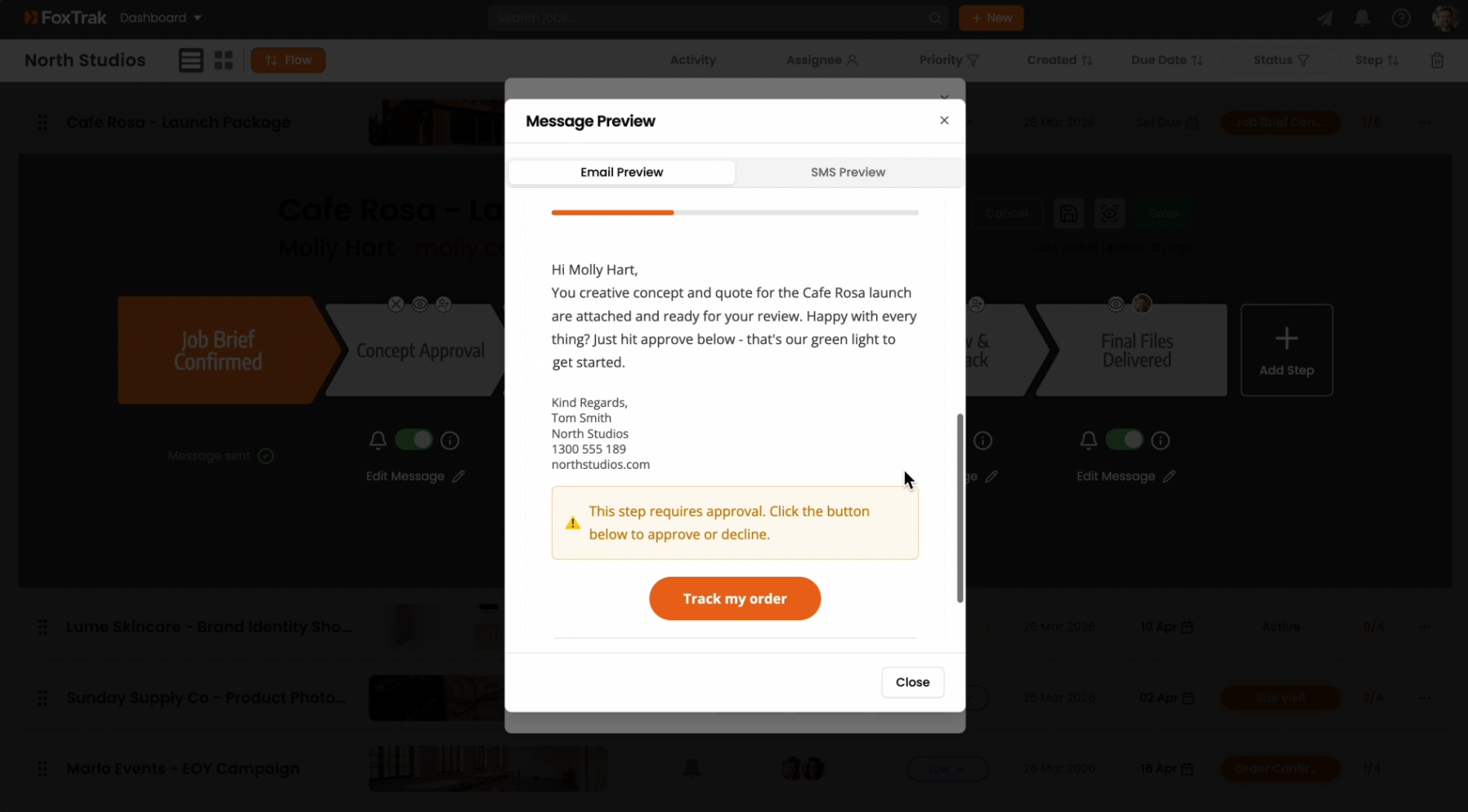
The email preview shows the full rendered output: subject line, greeting, message body, business footer, and a list of any attachments. This is exactly what your customer will receive in their inbox.
Always preview before sending if you've made changes to a message — it's the best way to catch formatting issues or typos before they reach the customer.