Jobs & Workflow
Hiding steps from customers
Some steps can be internal - things your team needs to do that the customer doesn't need to see. You can hide any step from the public tracker while keeping it fully visible to your team.
How to hide a step
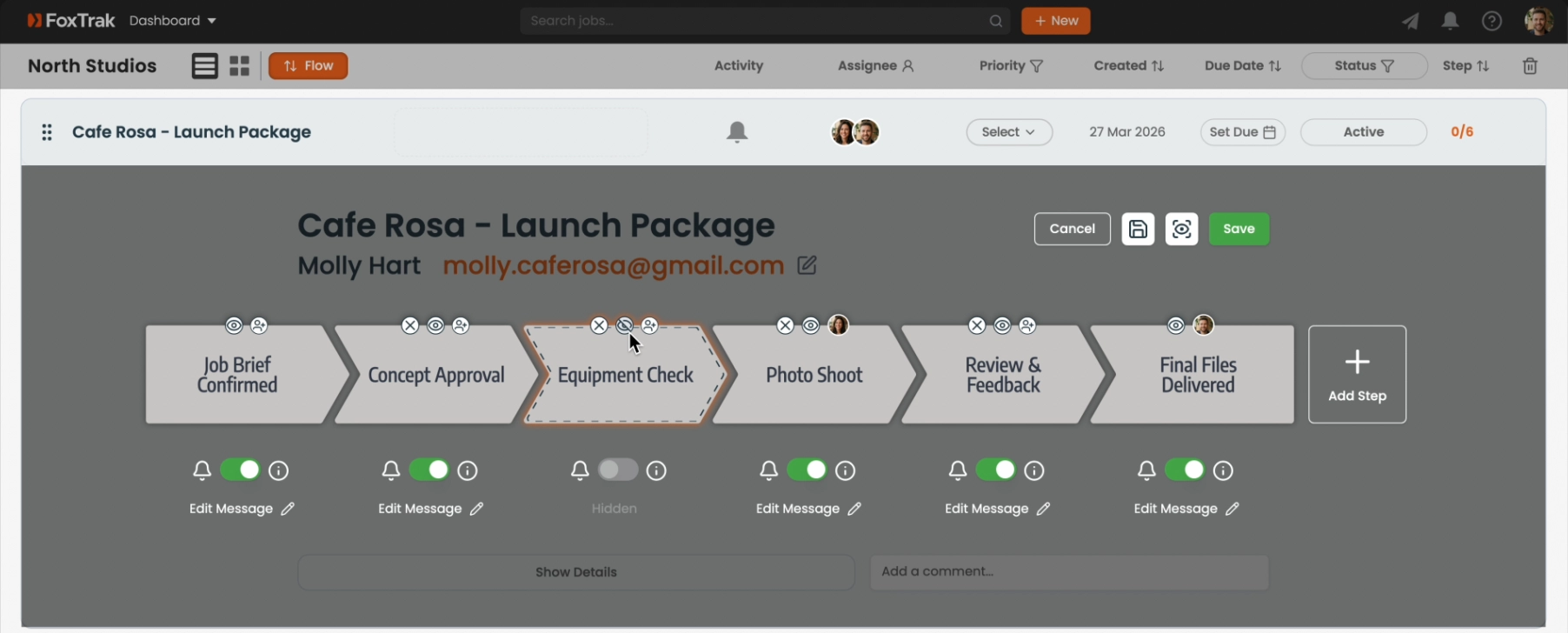
- Click Edit Trak to enter edit mode on the job
- click the eye icon on the step you want to hide
- Click save
What hidden steps look like
Hidden steps are invisible to the customer - they don't appear on the tracker at all, even once completed. Your team sees them normally in the job view with a hidden indicator.
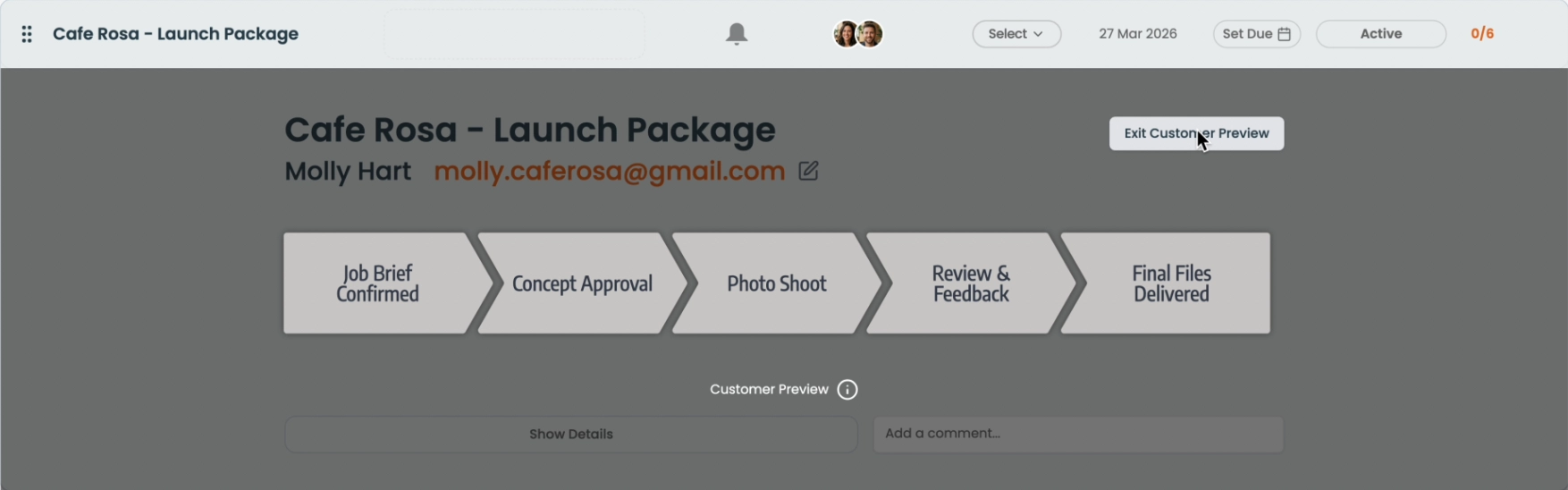
Hiding a step also automatically disables its customer notification, since there's nothing to notify the customer about.
Use hidden steps for internal checklists, approvals between team members, or anything that's part of your process but not relevant to the customer experience.