Creating a job
Every piece of work starts with a job. Here's how to create one and get it ready to go.
How to create a job
- Click + New from the Dashboard
- Enter the Job Title (required)
- Enter the Customer Name (required)
- Add at least one contact — email address or phone number
- Click Create
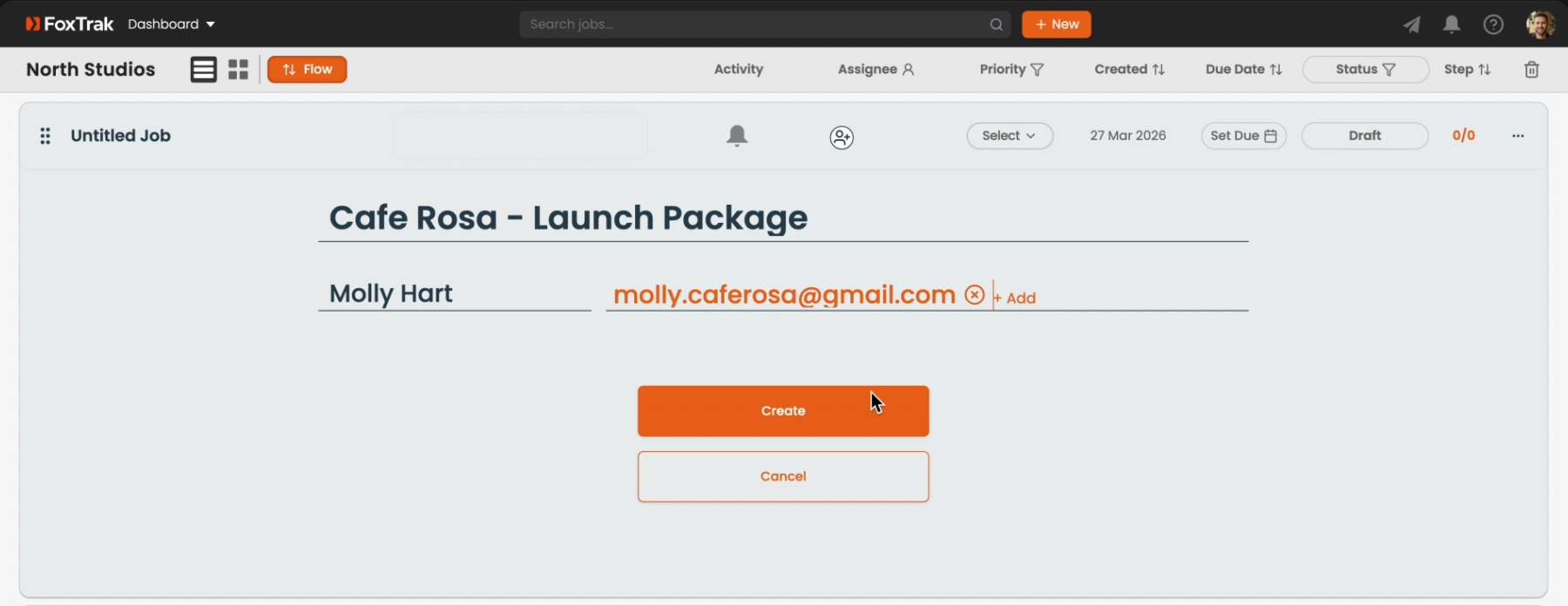
Adding contacts
The contact field is labelled Customer Email or Phone. Type an email address or phone number and press Enter, Space, or click away to confirm it as a tag. Once you've added the first contact the field changes to + Add. You can add up to 5 contacts per job. Phone numbers can be entered in Australian format or in international format (for example, +44 for a UK number). SMS updates are only sent to Australian and UK mobile numbers, so add an email address for customers in other countries. Press Backspace to remove the last tag.
Job status after creation
A new job starts as Draft. It becomes Active as soon as you add the first step. You can add steps right away or return to the job later.
Adding both an email and a phone number means your customer gets notified via both channels - handy if you want to make sure nothing gets missed.