Importing and syncing from Xero
Connect FoxTrak to Xero and your quotes and invoices sync automatically — attach them to job steps in seconds, and mark them as paid without touching Xero manually.
Connecting to Xero
- Go to Settings → Connected Apps
- Click Connect Xero
- Complete the Xero OAuth authorisation flow
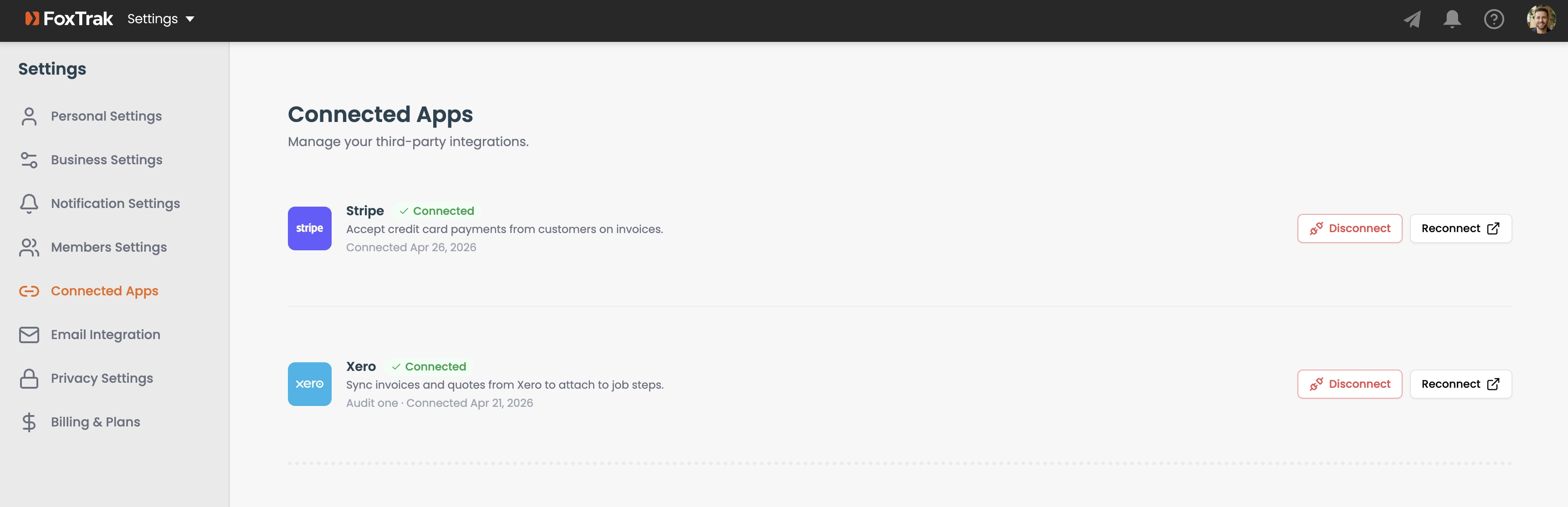
Once authorised, FoxTrak can fetch your quotes and invoices directly from Xero.
How syncing works
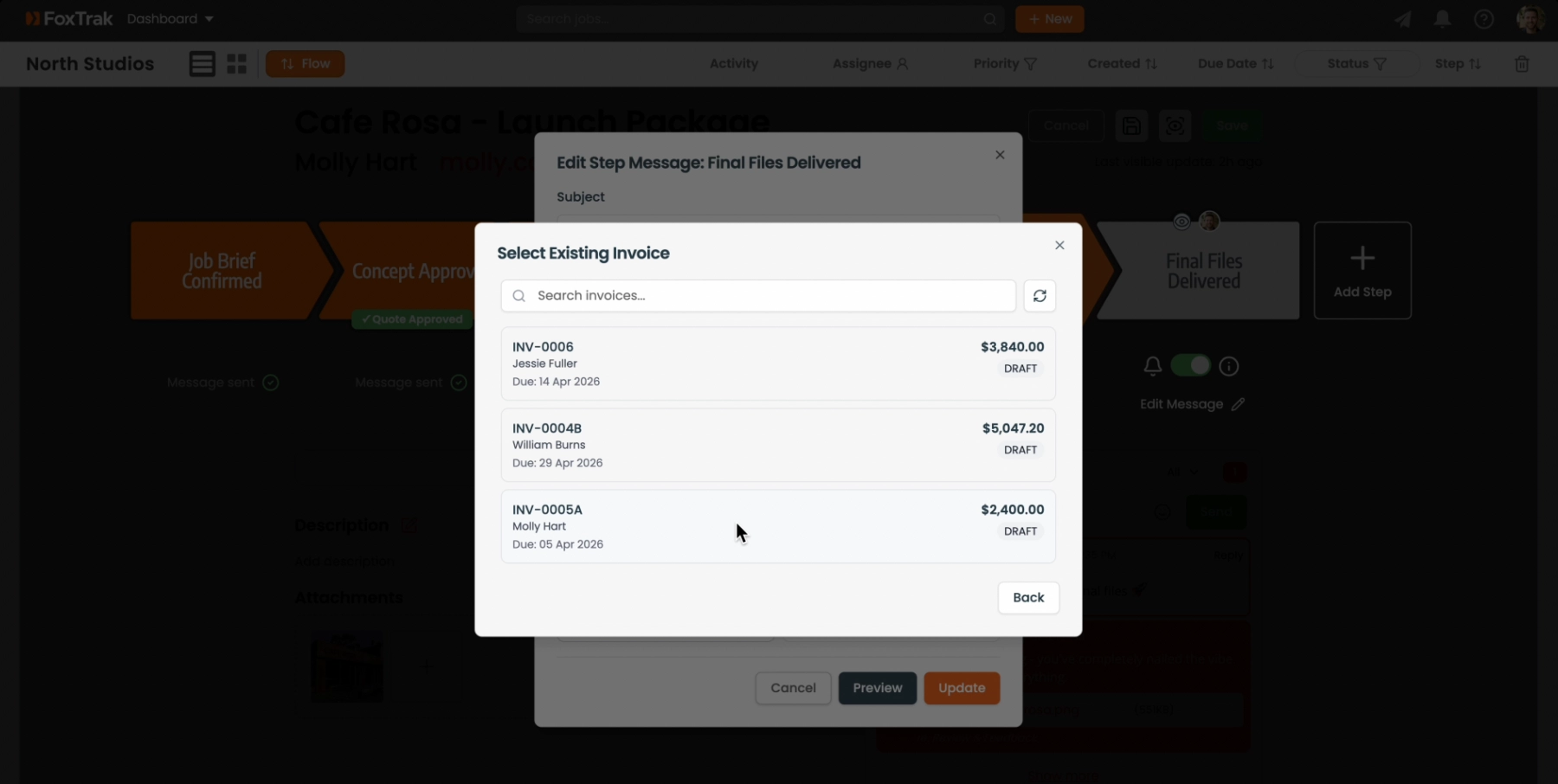
When you attach an invoice or quote to a step, FoxTrak fetches your unsent Xero documents and lets you select one. The PDF is retrieved directly from Xero and attached automatically — no manual download needed.
Payment sync
When a customer marks an invoice as paid through the tracker, FoxTrak automatically updates the invoice status in Xero. No double entry required.
Disconnecting Xero
Go to Settings → Connected Apps and click Disconnect. This removes the Xero token and disables auto-fetch. Manual invoice attachment still works without a Xero connection.
Xero connection is available on all paid plans. The OAuth token is encrypted and stored securely.